

Tiers, campaigns, and rules are like the rules of a game for your shop. The more customers visit and spend, the better rewards they unlock! Arova lets you set up three things under Settings → Loyalty Config:
1. Loyalty Tiers: Customer levels (like Bronze, Silver, Gold) that grant permanent point multipliers.
2. Loyalty Campaigns: Groups or folders that organize your special rules and promotions.
3. Loyalty Rules: Specific instructions that say: "When this happens, give this reward."
In this guide, we will show you how to set up tiers, campaigns, and rules, with real examples you can use in your shop.
---
1. Loyalty Tiers (Customer Levels)
Tiers reward your most loyal shoppers with permanent bonuses. A Gold member might earn points faster than a Bronze member.How to Create a Tier
Go to your dashboard, click Settings, select the Loyalty Config tab, and find the Tiers section. You will see a table of your current tiers and a form to add new ones like the image below.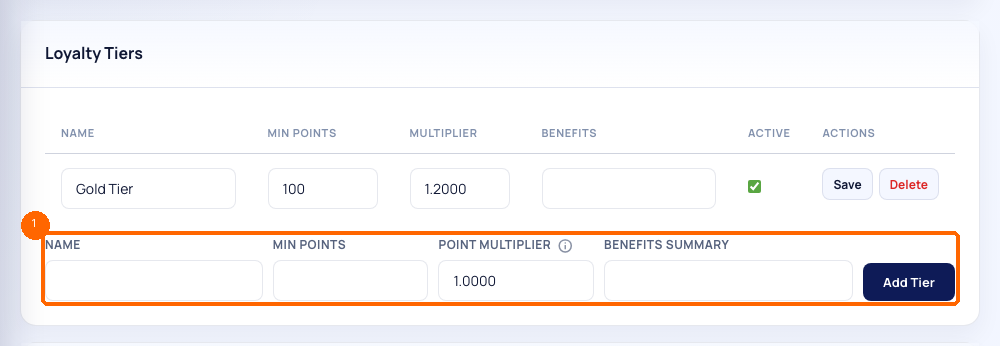
To add a new tier, fill in these fields:
- Name: The name of the tier (like "Silver Level" or "Gold Level").
- Min Points: How many points a customer must have in their lifetime balance to enter this tier (for example, 100 points for Silver, 500 points for Gold).
- Point Multiplier: The bonus multiplier for this tier. For example, if set to `1.2000`, a Gold customer earns 20% more points on every purchase!
- Benefits Summary: A description of the extra perks they get (e.g. "Free birthday drink").
- Active: Check this box to turn the tier on.
Tier Downgrades
If a customer spends points and their balance drops below the tier requirement, Arova has a Tier Downgrade Grace Period (configured under the Reward Engine settings tab). This gives them a set number of days (like 30 or 60 days) to keep their tier status and visit again to rebuild their points before downgrading. This keeps customers happy and gives them time to visit again.
---
2. Loyalty Campaigns
A campaign is a folder that groups related loyalty rules together. For example, you can create a campaign called "Holiday Specials" or "Weekly Bonuses". Each campaign has:- Name: The campaign name.
- Description: A note about what the campaign does.
- Priority: A number (like 1, 10, or 100) that decides which campaign wins if a customer qualifies for multiple rules at the same time. The rule in the campaign with the highest priority is the one that gets applied.
- Active: Checkbox to turn the campaign on or off.
3. Custom Loyalty Rules
Rules are where the magic happens. A rule is made of three parts: a Trigger, Conditions, and Rewards.Rule Triggers (When does it start?)
A rule is triggered by one of three events: 1. SPEND: When a customer makes a purchase at your shop. 2. REFERRAL: When an existing customer invites a new friend to join. 3. BIRTHDAY: Automatically on the customer's birthday.Rule Conditions (Who or when does it apply to?)
You can add conditions so the rule only runs under certain circumstances:- Minimum & Maximum Spend: The rule only applies if the purchase amount is within this range.
- Min & Max Visits: The rule only applies if it is the customer's Nth visit (e.g., set Max Visits to 1 for first-visit rules).
- Min Lifetime Spend: The rule only applies if the customer has spent a certain total amount in the past.
- Start & End Time: The rule only applies during certain hours of the day.
- Days of Week: The rule only applies on specific days (like Monday, Thursday, or Sunday).
Rule Rewards (What does the customer get?)
When a trigger occurs and all conditions are met, the customer gets a reward:- Flat Bonus Points: A fixed number of extra points (e.g., +10 points).
- Points Multiplier: Multiplies the normal points earned (e.g., 2.0x for double points).
- Override Earn Rate: Temporarily replaces your default earn rate with a new value.
4. Practical Example: Thursday Double Points Bonus
Let's set up a promotion where customers earn double points on Thursdays to boost mid-week sales.Step A: Create the Campaign
1. Go to Settings → Loyalty Config. 2. Scroll to the Campaigns section and click Add Campaign. 3. Name it `Weekly Specials` and set the Priority to `10`. 4. Check the Active box and click save.Step B: Create the Loyalty Rule
1. Under the Rules section, click Add Rule. 2. Fill in the details: - Rule Name: `Thursday Double Points` - Trigger: Select `SPEND`. - Campaign: Select `Weekly Specials`. 3. Scroll down to the Conditions section: - Check the box for Days of Week and select `Thursday` (deselect all other days). 4. Scroll down to the Rewards section: - Set Points Multiplier to `2.0000`. - Leave other rewards blank or 0. 5. Check the Active box and click Save Rule.The Outcome in Practice
Imagine your shop has a standard earn rate of 1 point per GHS 1. If a customer visits your shop on a Thursday and spends GHS 100, the system automatically checks your active rules. Since it is Thursday, the condition is met, and the rule multiplies their base points (100 points) by 2. The customer walks away with 200 points in their wallet! If they come back and spend GHS 100 on Friday, the rule will not trigger, and they will only receive the standard 100 points.---
5. Practical Example: First-Visit Welcome Bonus
Let's set up a rule that gives new customers a flat bonus of 20 points on their very first purchase.1. Go to Settings → Loyalty Config and add a new rule.
2. Fill in the details:
- Rule Name: `New Customer Welcome Bonus`
- Trigger: Select `SPEND`.
- Campaign: You can leave this blank or select an active campaign.
3. Scroll down to the Conditions section:
- Set Max Visits to `1`. This ensures it only runs on their first recorded transaction.
4. Scroll down to the Rewards section:
- Set Flat Bonus Points to `20`.
5. Check the Active box and click Save Rule.
The Outcome in Practice
When a brand-new customer gets registered at your shop and makes their very first purchase of GHS 50, the system sees that their lifetime visit count is exactly 1. The rule triggers, granting them the standard points for their GHS 50 spend (e.g. 50 points) plus the 20 bonus points, giving them a total of 70 points on day one! On their second visit (visit count is 2), the system checks the rule conditions, sees that their visit count is greater than 1, and skips the welcome bonus. They will only earn the standard points for whatever they buy on that second visit.---